
Prebuilt ui ux
Prebuilt UI/UX
We offer a wide variety of Prebuilt app templates and UI components which have been designed and optimized for use with the complete Mapsted Maps Mobile framework.
Depending on your desired level of customization, you can choose from several Prebuilt UI/UX options. Our Prebuilt app templates provide a fully immersive mobile application that includes basic customizations such as colour changes. For more advanced customization, you can use our Prebuilt UI components to build your own application. These components include a suite of Prebuilt UI views, such as wayfinding UI/UX, itinerary management, and category lists.
Mobile Sdk Style Customization
When integrating the Mapsted mobile-sdk into your application, you will notice that many of the mobile-sdk views will adapt based on your app theme. However, some views include additional custom styling which are intended to accentuate various key features (e.g., highlighted button colour). These additional view stylings can be customized as outlined below.
// in style.xml file, overwrite the desired Mapsted styles or individual fields

// Mapsted map bottom sheet style
<style name="MapstedButtonMapBottomSheet"></style>

// Mapsted bottom sheet directions button style
<style name="MapstedButtonMapBottomSheetDirections"></style>

// Mapsted map action button style
<style name="MapstedMapActionButton"></style>

// Mapsted rounded corner button style
<style name="MapstedRoundCornerButton"></style>

// Accented rounded button (e.g., for GO in RoutePreview screen)
<style name="MapstedRoundCornerButtonAccent"></style>
// To be added shortly
Prebuilt App Templates
Our Prebuilt app templates allow you to experience the look and feel of a full mobile application within minutes, while providing basic customization options to give the app your own look and feel. See below for examples of a few app template UI screens.
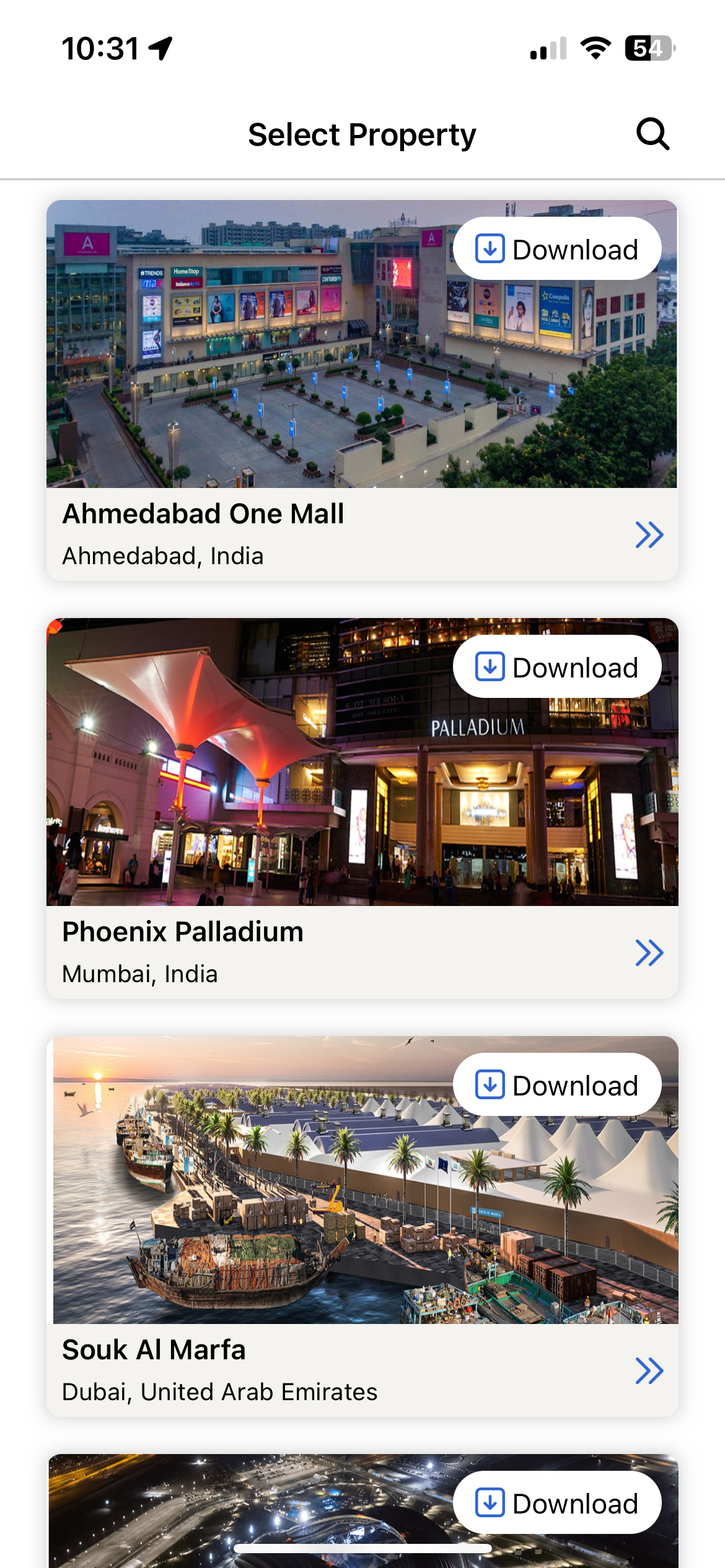
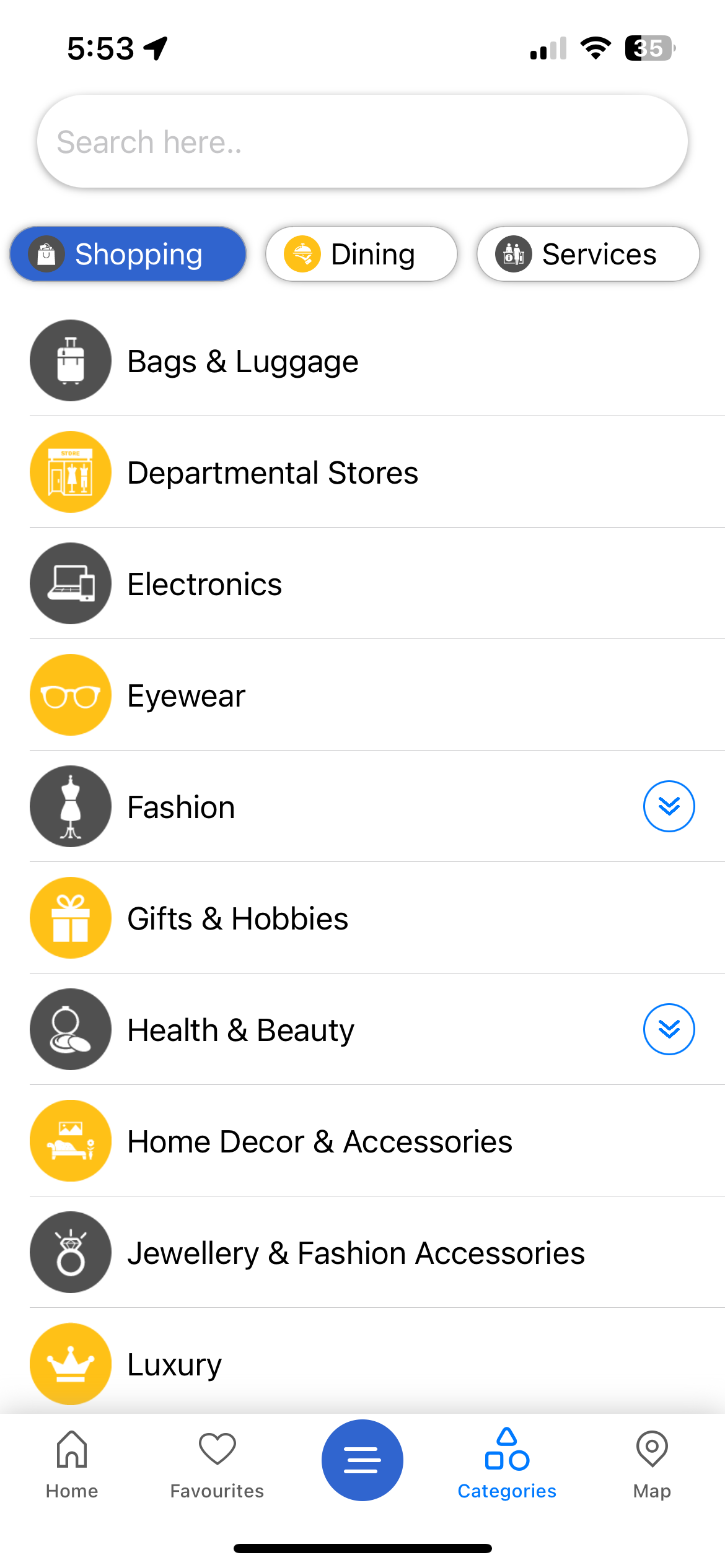
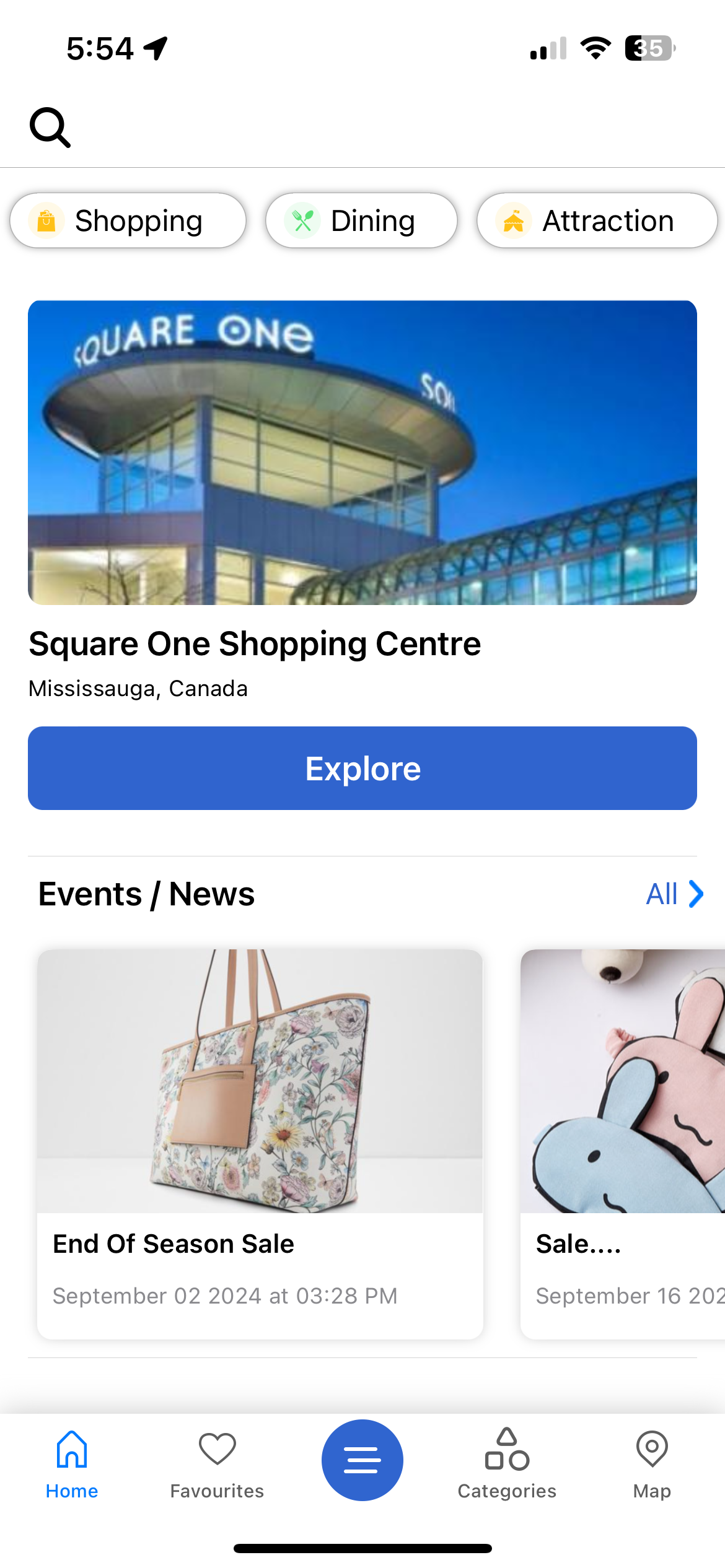
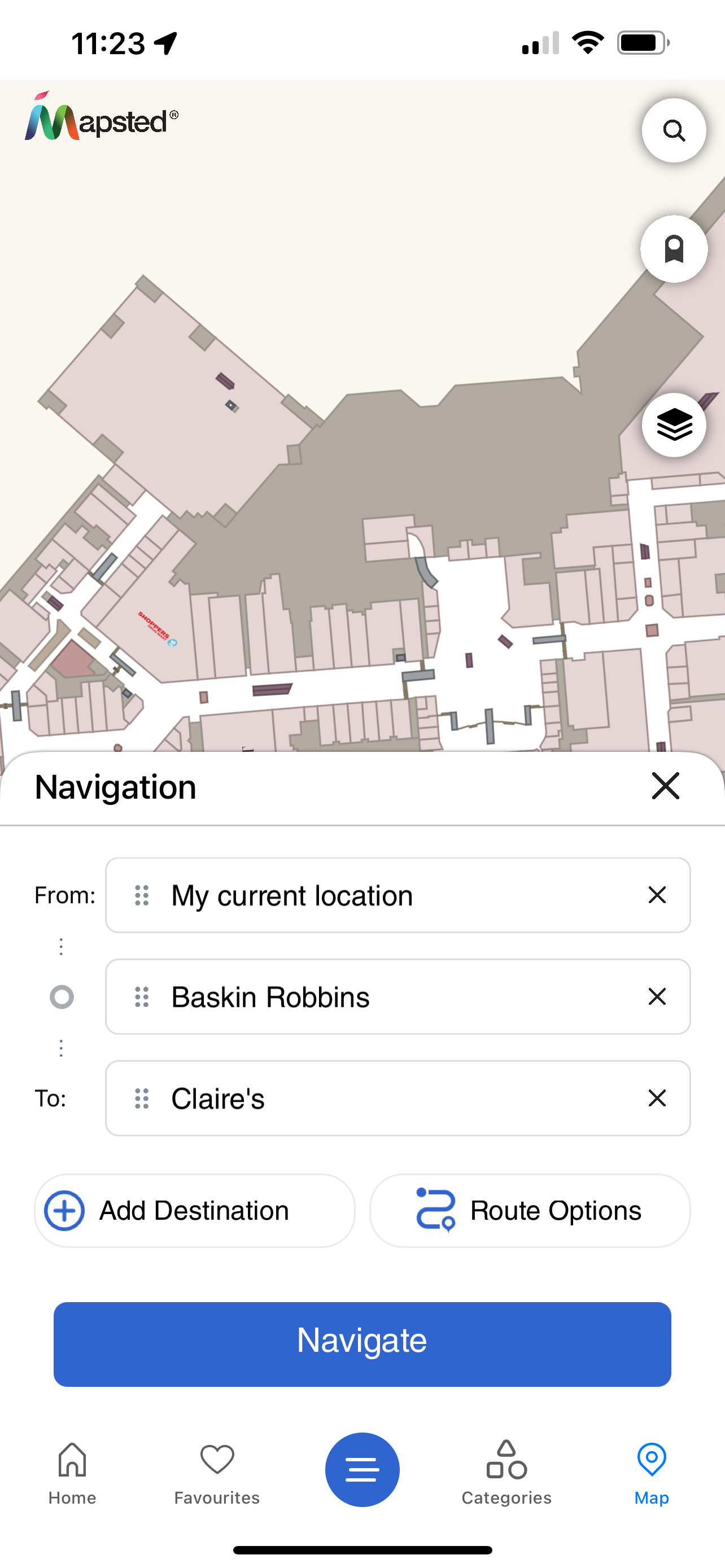
To learn how to enable a Prebuilt app template, see the sample code below.
// Extending a Mapsted App Template enabled Mapsted's Prebuilt app template
// Note that this could also be achieved using an Intent to launch
// AppTemplateMainActivity
public class AppTempActivity extends AppTemplateMainActivity {
    @Override
    protected void onCreate(Bundle savedInstanceState) {
        super.setCustomParams(getCustomParams());
        super.onCreate(savedInstanceState);
        // Anything you want
    }

    private CustomParams getCustomParams() {
        return CustomParams.newBuilder(this)
                //set desired params
                .build();
    }
}
// Go to the AppDelegate.swift file in the main bundle of your application.
// Inside the application(_:didFinishLaunchingWithOptions:) method, add the relevant lines as per the example below
import AppTemplate

internal func application(_ application: UIApplication, didFinishLaunchingWithOptions launchOptions: [UIApplication.LaunchOptionsKey: Any]?) -> Bool {

    // Load and show the root view controller
    self.window = UIWindow(frame: UIScreen.main.bounds)

    //Set AppTemplateParams to use map overlays and show login, if applicable
    AppTemplateParams.shared.useMapOverlays = true
    AppTemplateParams.shared.requireClientLogin = true

    //Add details to show the app update popup if there is an update of the app available on app store.
    if let info = Bundle.main.infoDictionary, let currentVersion = info["CFBundleShortVersionString"] as? String, let identifier = info["CFBundleIdentifier"] as? String {
        AppTemplateParams.shared.setUpdateVersionPopupDetails(currentAppVersion: currentVersion, appBundleIdentifier: identifier)
    }

    //Compute copyright text OR use from localizable strings
    let copyRightText = NSLocalizedString("Startup.CopyrightText", comment: "Sample")

    //Set the name of the animation gif image without the extension and splash screen copyright text. This will display while the app intiailizes.
    AppTemplateParams.shared.splashScreenInfo = SplashScreenInfo(copyrightInfoText: copyRightText, splashScreenGifLightMode: "Logo-Animation", splashScreenGifDarkMode: "Logo-Animation-Dark")

    //Set the SplashScreenPermissionViewController as root viewcontroller to the window.
    let permissionController = SplashScreenPermissionViewController.instantiateViewController()
    let navController = UINavigationController(rootViewController: permissionController)
    navController.isNavigationBarHidden = true

    self.window?.rootViewController = navController

    self.window?.makeKeyAndVisible()

    return true
}
Customized Bottom Navigation Tab Bar
With our App Template, you now have the flexibility to customize the tab bar by reordering the tabs to suit your preferences. Additionally, you can seamlessly integrate your own views into the tab bar for a more tailored user experience.
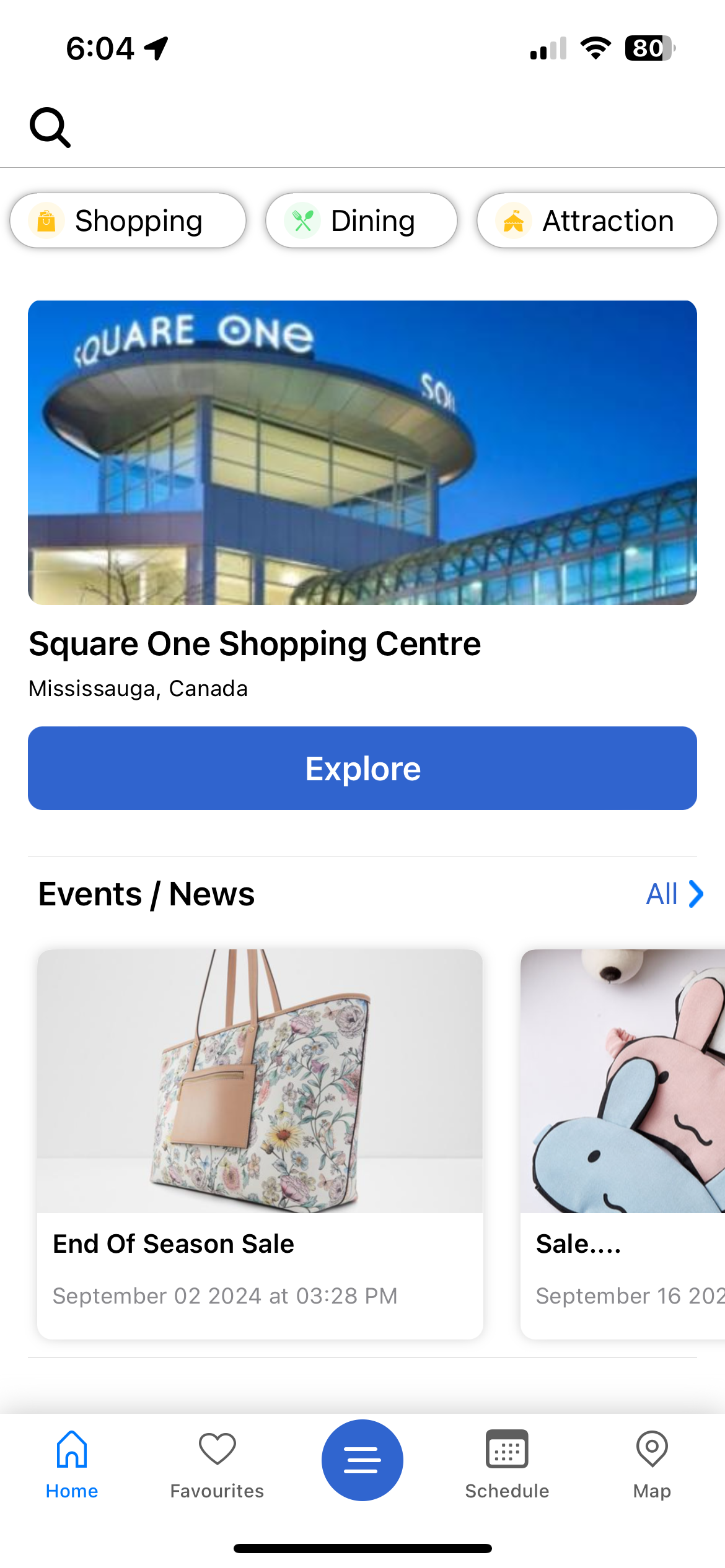
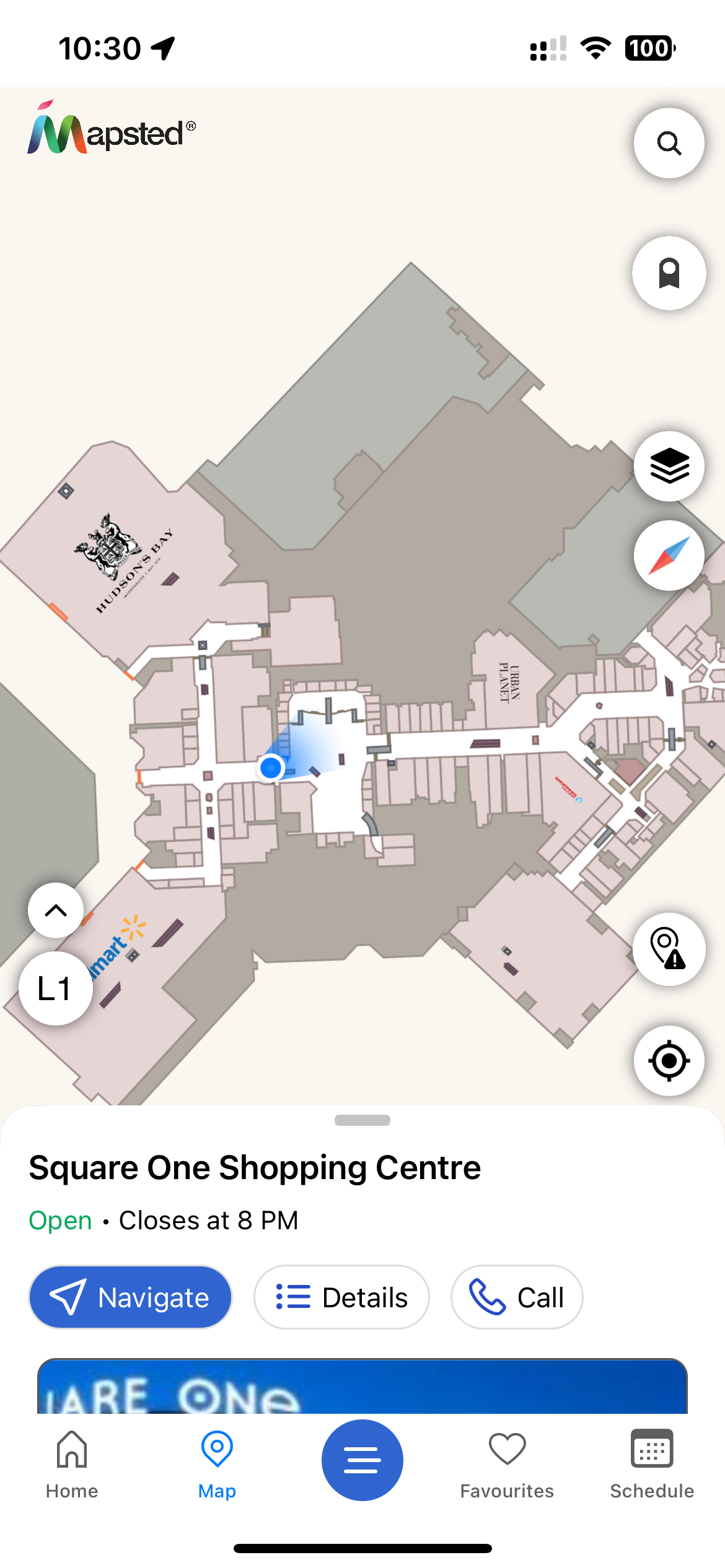
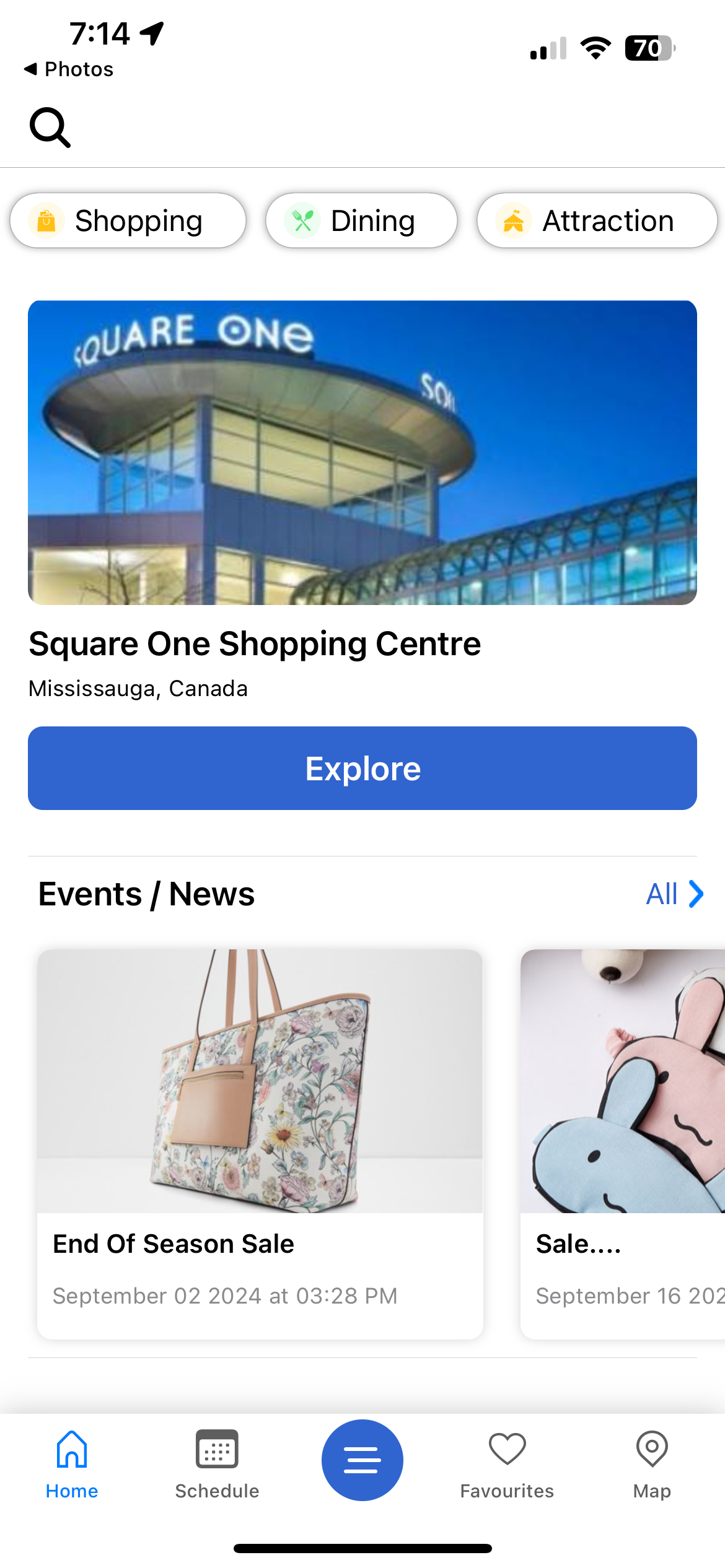
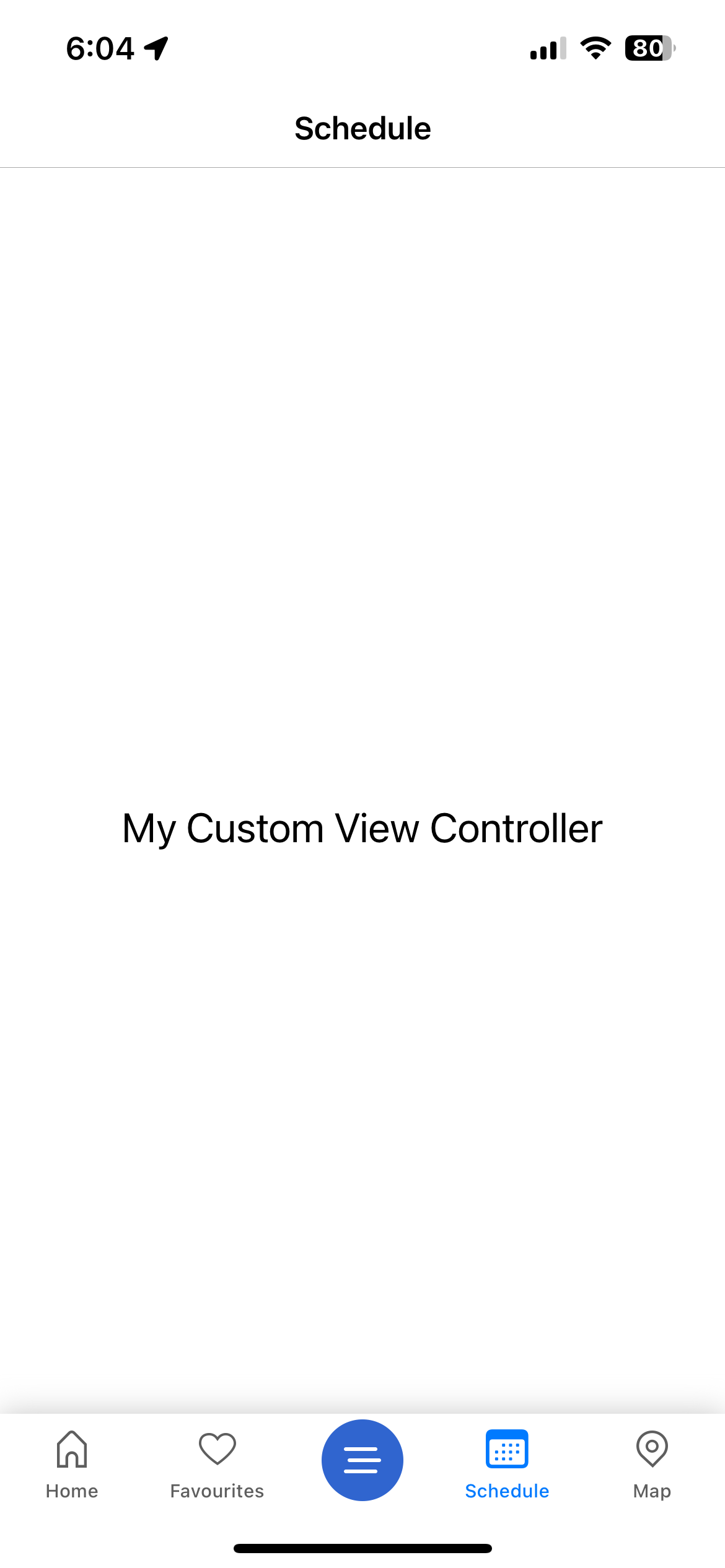
Detailed instructions on how to implement these customizations are provided in the example below.
public class AppTempActivity extends AppTemplateMainActivity {

    /**
     * Creating Menu items with predefined & custom menu options.
     **/
    public BottomMenu buildBottomMenus() {
        return MenuUtil.BottomMenu.Builder()
                .addMenu(
                    //   Icon to be shown on the menu on bottom navigation bar
                    com.mapsted.app_template.R.drawable.icon_menu_home,
                    //   Text to be set on the  menu on bottom navigation bar
                    "Home",
                    menuType = MenuUtil.MenuType.Home
                )
                .addMenu(
                    com.mapsted.app_template.R.drawable.icon_menu_map,
                    "Map",
                    menuType = MenuUtil.MenuType.Map
                )
                .addMenu(
                    com.mapsted.app_template.R.drawable.hamburger_menu,
                    "Menu",
                    menuType = MenuUtil.MenuType.Menu
                )
                .addMenu(
                    com.mapsted.app_template.R.drawable.icon_menu_buildings,
                    "Buildings",
                    menuType = MenuUtil.MenuType.Building
                )
                // add more menu or custom menus
                .addCustomMenu(
                    //   Icon to be set on the menu on bottom navigation bar
                    com.mapsted.app_template.R.drawable.ic_events_news,
                    //   Text to be set on the  menu on bottom navigation bar
                    "Events",
                    //  Provide the fully qualified class name of the fragment that should open upon tapping.
                    invokableClassName = "com.mapsted.ui_components.presentation.EventsListFragment"
                )
                // For properties with a single building, we have introduced a solution that allows you to add a fallback menu item to the bottom menu.
                .setFallBack(
                    //   Icon to be set on the fallback menu on bottom navigation bar
                    com.mapsted.app_template.R.drawable.ic_favourite,
                    //   Text to be set on the fallback menu on the bottom navigation bar
                    "Favorites",
                    //  Provide the fully qualified class name of the fragment that should open upon tapping.
                    invokableClassName = "com.mapsted.app_template.presentation.FavoritesFragment"
                )
                .build()
        }
    }

    @Override
    protected void onCreate(Bundle savedInstanceState) {
        super.onCreate(savedInstanceState);
        //...
        /**
         * To add custom menu to bottom navigation call below method
         **/
        super.setupCustomMenu(buildBottomMenus());
        //...
    }
}
// Create a UIViewController which inherits from SplashScreenPermissionViewController as shown below and override the function getBottomMenu()

import UIKit
import AppTemplate

class YourViewController: SplashScreenPermissionViewController {
    static func initViewController() -> YourViewController {
        let splashScreenPermissionViewController = super.instantiateViewController()
        if let yourViewController = splashScreenPermissionViewController as? YourViewController {
            return yourViewController
        }
        return YourViewController()
    }

    // Override getBottomMenu method to customize the bottom tab bar
    override func getBottomMenu() -> MapstedMenu {
        // Create your viewcontoller and add it to tab bar as custom item.
        //For properties with a single building, we have introduced a solution that allows you to add a fallback menu item to the bottom menu.
        let myCustomViewController = MyCustomViewController(nibName: "MyCustomViewController", bundle: Bundle.main)
        let mapstedMenu = MapstedMenu.builder().addItem(menuType: .Home)
                                            .addItem(menuType: .Map)
                                            .addItem(menuType: .Menu)
                                            .addItem(menuType: .Buildings)
                                            .addCustomItem(icon: UIImage(systemName: "calendar")!, name: "Schedule", providerView: myCustomViewController)
                                            .setFallbackForBuilding(menuType: .Favourites)
        return mapstedMenu
    }
}

//Now on the application's AppDelegate, please set the YourViewController as rootViewController to the window.
internal func application(_ application: UIApplication, didFinishLaunchingWithOptions launchOptions: [UIApplication.LaunchOptionsKey: Any]?) -> Bool {

    // Load and show the root view controller
    self.window = UIWindow(frame: UIScreen.main.bounds)

    //...
    //...

    let yourViewController = YourViewController.initViewController()
    let navController = UINavigationController(rootViewController: yourViewController)
    navController.isNavigationBarHidden = true

    self.window?.rootViewController = navController

    self.window?.makeKeyAndVisible()

    return true
}
Note
For iOS, the "Menu" option must always be present in the tab bar if we want to switch between properties
Prebuilt UI Components
The Prebuilt app templates outlined in the previous section use a variety of Prebuilt UI components. Our UI components are specific UI/UX views which are designed and optimized to interact with the Mapsted Maps Mobile framework. This allows you to custom pick and choose which aspects of our Prebuilt UI/UX you want to use in your application.
The Prebuilt UI components are an excellent choice when you already have your own application and want to easily add some additional functionality based on the Mapsted Maps Mobile framework. For example, one common usage is to trigger a Mapsted Map view and use various Prebuilt UI components, like wayfinding UI/UX or itinerary management, when a maps button is clicked within your application. In other scenarios, various Prebuilt UI components can be reused in other areas of your application, for example category lists.